Custom labels from Channable, reused in ChatGPT Ads
You can reuse your margin and season labels from Google Ads and Microsoft Ads in ChatGPT Ads too. In this practical test, I show how I built that in Channable, the mistake I made first, and what showed up in the interface afterwards.
 Matthijs BoonFounder and online marketer
10 September 2026
Practical test and documentation check: 9 September 2026.
In short
You can reuse your existing custom labels for Google Ads and Microsoft Ads in ChatGPT Ads by combining them in Channable into the feed field ads_metadata. In my CSV feed I do this with a text field in which the filled labels are automatically built up as JSON. After uploading, Custom Label 0 appeared among the product filters of my ChatGPT Ads ad group.
Your existing rules for margin, season or product groups stay in place. You only add the conversion for the ChatGPT feed. That lets you select products for different ad groups, without rethinking every label rule from scratch.
This walkthrough is for marketers who manage their feeds in Channable and already have a working ChatGPT Ads feed via CSV and SFTP. The rule set you build consists of eight sections: a start, five label sections, a closing step and a find-and-replace step.
An example of the contents of ads_metadata:
{"custom_label_0":"high_margin","custom_label_2":"winter"}Note: this does not import campaigns or settings from Google Ads. You are reusing the product labels from the same source data.
Why I wanted to figure this out
ChatGPT Ads shows product filters such as brand, price and product category by default. Your own custom labels don't automatically appear among them, and that's exactly what lets me decide which products form an ad group together.
During my first tests with ChatGPT Ads, I didn't just want to upload a product feed. I also wanted to be able to determine which products end up together in an ad group.
In Google Ads and Microsoft Ads I like to use custom labels for this. I want to treat a high-margin product differently from one where little is left over. And a seasonal item doesn't need the same approach as a product that's relevant all year round.
I had already built that structure in Channable. It seemed pointless to re-sort every product for a new advertising channel. So I looked for a way to make the same values usable there too.
That fits how I look at paid search for online stores: the commercial logic behind your product selection doesn't need to start over for every channel.
What are custom labels, and what do you do with them in ChatGPT Ads?
Custom labels are self-chosen attributes in your product feed that you use to categorise products. Google and Microsoft support five label fields, from custom_label_0 through custom_label_4; you decide yourself what each field means. 1, 2
One possible structure is:
| Field | Use | Example values |
|---|---|---|
custom_label_0 | Margin | high_margin, low_margin |
custom_label_1 | Product group | panelen, accessoires |
custom_label_2 | Season | winter, all_year |
custom_label_3 | Performance group | bestseller, test |
custom_label_4 | Ad selection | active, not_active |
This is an example, not a structure you should copy as is. In my first test I also used not_active within label 0. The starting point was to keep my existing labels intact.
In ChatGPT Ads I wanted to use those labels for product segmentation. OpenAI describes ads_metadata as a field for additional product filters, which you use to organise products for ad groups. 3
A label such as high_margin is only an attribute there. It's not an instruction for ChatGPT Ads to automatically bid more or to calculate margin.
Why doesn't mapping custom_label_0 straight to ads_metadata work?
My first mapping seemed logical:
custom_label_0 → ads_metadataThe CSV preview then showed only:
low_marginThat did carry the value across, but not the name of the label it belonged to.
The structure I needed was:
{"custom_label_0":"low_margin"}OpenAI specifies ads_metadata as an object with text values. In a CSV export, that object needs to sit in the cell as JSON. Simply renaming a field to ads_metadata doesn't build that object for you. 4
I also tried an object field with a subfield in Channable. In the mapping for my export I could only select the subfield. The result stayed a single label value.
In the end, in my CSV setup, a text field with the full JSON content turned out to work. The CSV preview was more useful here than the name or type of the internal field: that's where I could see what was actually being exported.
How I set up the rules in Channable
I use one extra text field and a rule set that reads the existing custom labels. Nothing is added for empty labels. So I don't have to build a separate JSON value for every combination.
The full structure consists of eight sections: one opening section, five label sections, one closing section and one find-and-replace section.
This walkthrough assumes a working ChatGPT Ads feed via CSV and SFTP, as in my test. You still need to supply the other required product fields correctly. Don't have access to ChatGPT Ads yet? Read about where advertising in ChatGPT stands in the Netherlands on our ChatGPT Ads page.
1. Keep your existing custom label rules
Leave the rules that assign high_margin, low_margin, winter or other values as they are. The new rule set comes after the rules that fill the labels.
Do check whether those values are available in your ChatGPT export. Labels that are only filled within the rules of your Google export need to be calculated for this export too. You can copy the same logic or bring it under a shared master rule group. Channable supports master rule groups across multiple exports. 5
The conditions themselves don't need to change. You only need to look at where you apply them.
2. Create one text field
My extra project field is called:
chatgpt_ads_metadataI created this as Text, without a list of multiple values. This field will hold the complete JSON for one product.

You can choose the name of this internal field yourself. The name of the final channel field is ads_metadata.
3. Start each product with an opening brace
Create a rule, for example named Build ChatGPT Ads metadata. Start with this section:
IF: all items
THEN: take chatgpt_ads_metadata
ACTION: set value
VALUE: {
This makes the structure start fresh for every product. It prevents you from tacking new fragments onto a JSON value that already exists.
Add the following steps as separate sections within the same rule. Channable runs rules and sections from top to bottom. Keep the order below. 6
4. Add every filled custom label
For custom_label_0, add a section with this condition:
IF: custom_label_0 is not empty
THEN: take chatgpt_ads_metadata
ACTION: combine value
With combine value you can join fixed text and values from other fields. 7
In the bar where you build the combination, place these four parts one after another:
| Part | What you insert |
|---|---|
| 1 | The field chatgpt_ads_metadata |
| 2 | The fixed text ,"custom_label_0":" |
| 3 | The field custom_label_0 |
| 4 | The fixed text " |
Schematically, that looks like this:
[chatgpt_ads_metadata] + ,"custom_label_0":" + [custom_label_0] + "The square brackets and plus signs are only for explanation. In Channable you select the fields as field blocks. You don't type the plus signs, brackets or extra spaces into the value.
For a product with high_margin, this section leaves you with:
{,"custom_label_0":"high_margin"This is not yet complete JSON. The field isn't finished.
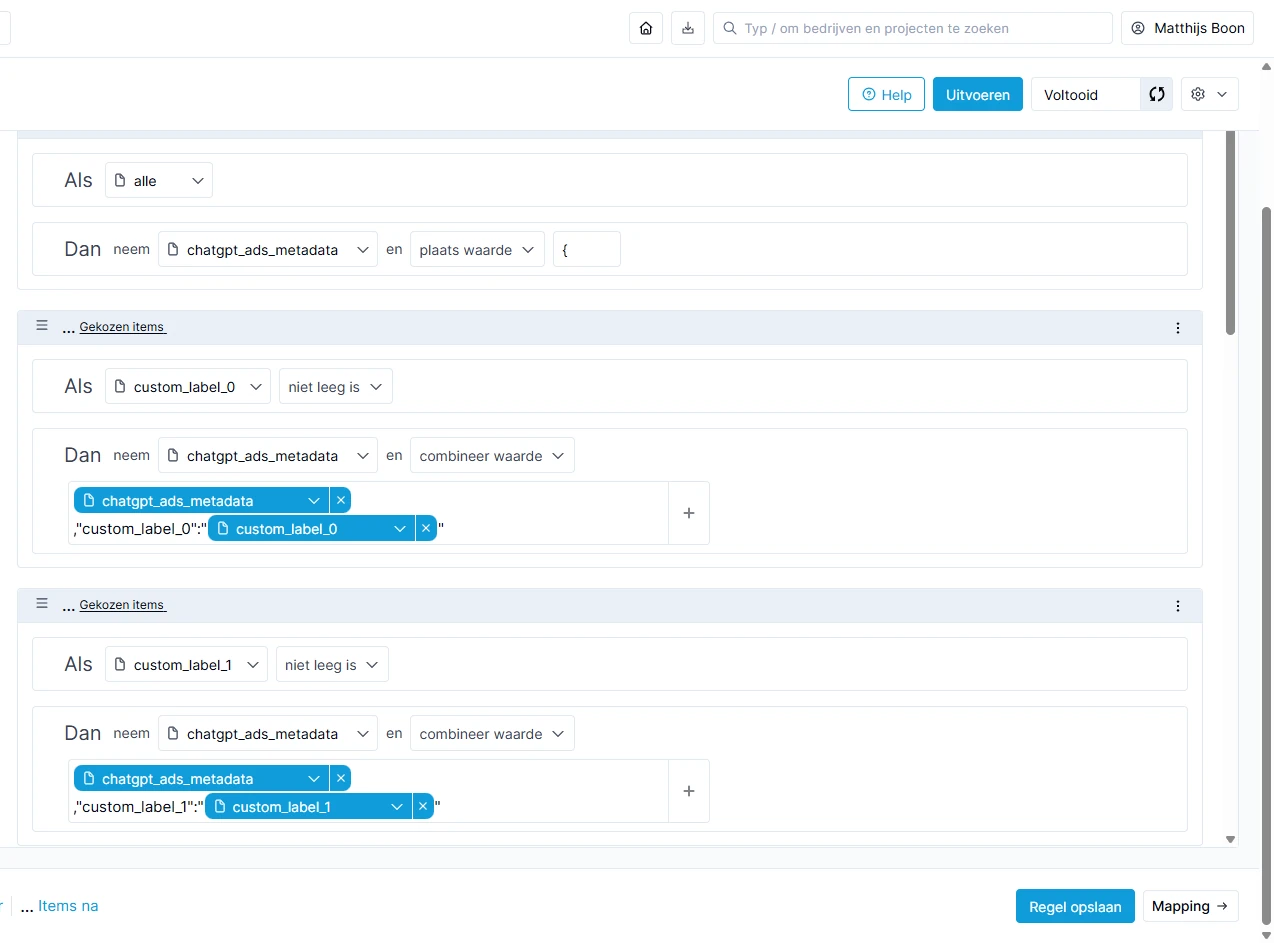
Repeat this section for custom_label_1, custom_label_2, custom_label_3 and custom_label_4. Each time, adjust the number in the condition, the fixed text and the selected source field. Each section only runs if that particular label is not empty.
Only use source fields that exist in your project. Skipping an empty field is different from referencing a field that hasn't been created yet.
The first field block, chatgpt_ads_metadata, stays in every section. That's how you carry over the result of the previous sections. Without that block, you overwrite what you had already built.

5. Close the JSON and remove the first comma
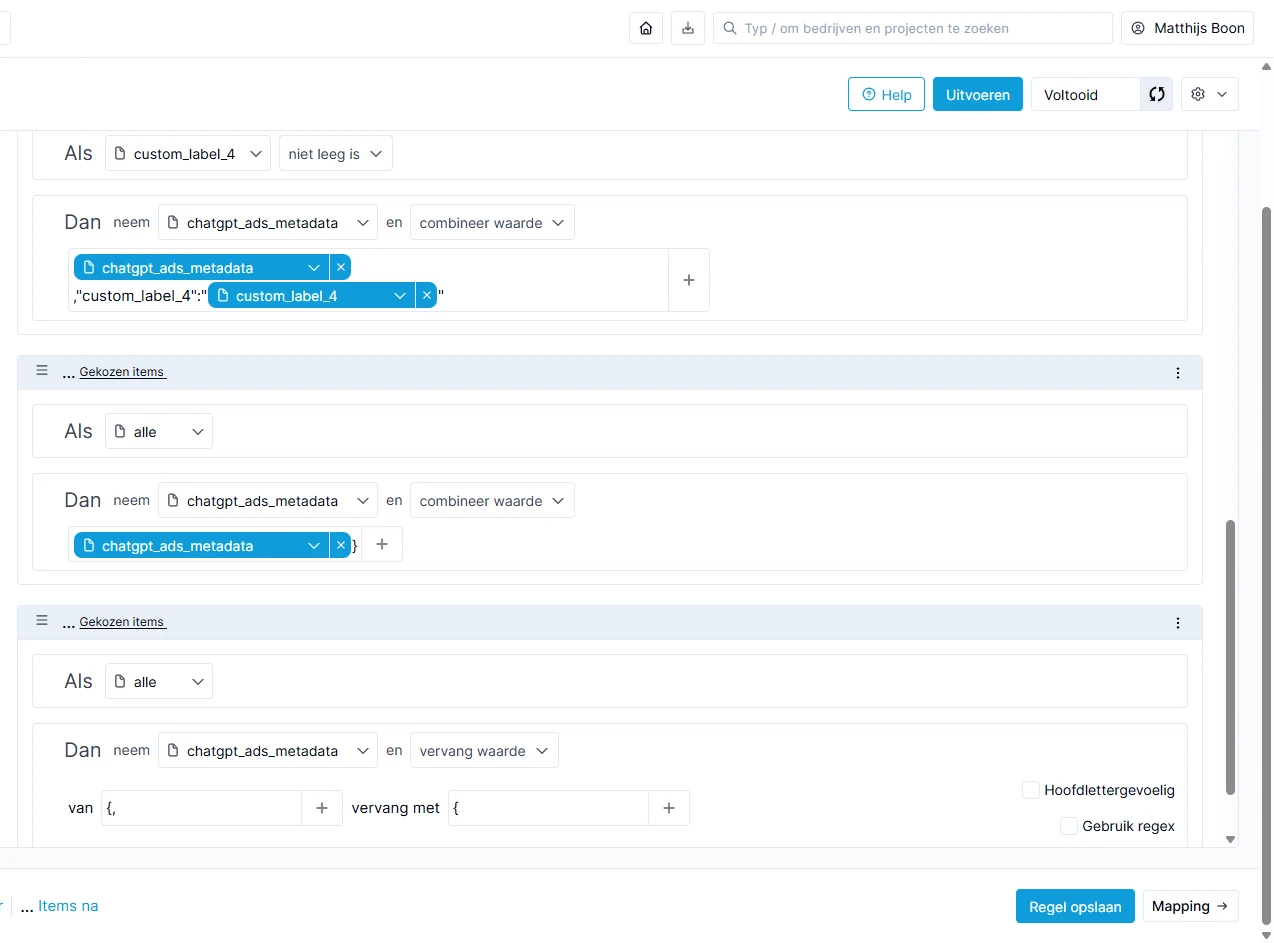
After the five label sections, add a section for all items:
IF: all items
THEN: take chatgpt_ads_metadata
ACTION: combine value
COMBINATION: [chatgpt_ads_metadata] + }
Then, in the same rule, choose replace value; for me that looks like the screenshot below. This section also applies to all items:
IF: all items
THEN: take chatgpt_ads_metadata
ACTION: replace value
FROM: {,
REPLACE WITH: {
Leave the Use regex checkbox unticked; in my setup Case sensitive is also off. Here you're literally replacing the combination {, with {; no regex pattern is needed.
Why that first comma? Every filled label gets the same fragment with a comma in front of it. That way you don't need to work out separately which label is filled first. At the end you strip the leftover comma right after the opening brace.
If only label 0 and label 2 are filled in, the result is:
{"custom_label_0":"high_margin","custom_label_2":"winter"}Try building it yourself
Switch labels on or off and see how the rule set in Channable builds the JSON for ads_metadata, comma by comma.
When a label is off, the field is empty in your feed and the rule set skips it.
The rule set, step by step
- start
{ - label 0
,"custom_label_0":"high_margin" - label 1skipped, empty
- label 2
,"custom_label_2":"winter" - label 3skipped, empty
- label 4skipped, empty
- close
} - replacereplaces {, with {before
{,"custom_label_0":"high_margin","custom_label_2":"winter"}after{"custom_label_0":"high_margin","custom_label_2":"winter"}
{"custom_label_0":"high_margin","custom_label_2":"winter"}6. Map the complete text field to ads_metadata
In the mapping for my ChatGPT feed, I then set this up:
| Internal field in Channable | Channel field |
|---|---|
chatgpt_ads_metadata | ads_metadata |
So you export the complete value you just built, instead of the single custom_label_0 or a subfield.
My Google and Microsoft mappings don't need to change for this. They can keep using the original custom label fields.
7. Check the actual CSV output
Open Preview & export in Channable and look at the CSV preview. That's where you can check the final export, rather than only the internal project fields. 8
In the ads_metadata column, you want to see, for example:
{"custom_label_0":"low_margin","custom_label_2":"winter"}Check a product with one label, a product with several labels and a product where label 0 is empty but a later label is filled in. That also tests whether removing the first comma works correctly.
Watch out for special characters. This simple combination doesn't add JSON escaping. For this setup, use controlled label values such as high_margin and winter. Values with double quotation marks, backslashes or line breaks need to be escaped correctly first. Otherwise the JSON can become invalid.
In a downloaded CSV file, a cell can look like this:
"{""custom_label_0"":""high_margin""}"Those double quotation marks are CSV escaping. Don't add them to your internal field value yourself. OpenAI also describes this notation in the feed specification. 4
8. Upload the feed and check the filter in ChatGPT Ads
After checking, I resubmitted my feed via SFTP. OpenAI states that processing can take anywhere from a few minutes to a few hours. Check the new upload in Upload history and also look for any errors. 3
After that, I opened my ad group in ChatGPT Ads and went to:
Product filters → Add filter
There, Custom Label 0 now appeared. That was the confirmation I was looking for: the label was now genuinely usable in the ChatGPT Ads interface.
Redrawn in our own style: this is how Custom Label 0 appeared among the product filters of my ad group.
How do you use this to segment your ChatGPT Ads campaigns?
Use the labels to build a product selection per ad group. You set the campaign budget at campaign level; the product filters determine which products may be used within the ad group. 9
A simple setup I would build with this:
| Ad group | Product filter |
|---|---|
| High margin | Custom Label 0 is high_margin |
| Low margin | Custom Label 0 is low_margin |
Start with just the group you want to test, for example. You don't automatically need an ad group for every label value.
For separate budgets, you can split the segments across separate campaigns. Within the ad groups of those campaigns, you apply the matching product filters. The label itself doesn't control budget allocation. 9
I would rather start with two product groups where I genuinely want to make a different decision, than roll out every combination of five labels at once. The structure should make testing easier. If it mostly creates overhead, you gain little from it.
Choose deliberately what does get included
Among my labels was also not_active. That's a self-chosen value, not an automatic switch to turn something off.
With a filter set to only high_margin, you exclude products with low_margin, not_active or an empty label from that ad group. Do check your other ad groups though: a group without restrictive filters can still let the same products through. 9
When setting this up, also look at the number of matching products. OpenAI cites that number as the real check on your product selection. The Products tab is a reporting overview, so it isn't the same check. 3
What this test did and didn't show
In this setup, I built the JSON, checked the export and then saw Custom Label 0 appear in the filter list of ChatGPT Ads.
That isn't proof that a label automatically generates more revenue, or that every possible metadata key is available in every account. So test an extra label first with a recognisable value and check the product selection before you build your campaigns around it.
For me, the gain for now sits in management. I can use the product structure I already had for ChatGPT Ads as well. I don't have to maintain a second set of margin or season rules that could later drift from the original structure.
Frequently asked questions
Do I need to change my existing custom label rules?
The underlying rules can stay as they are. Make sure their output is also available in your ChatGPT export. That is where you add the rule set that converts the filled labels into ads_metadata. The existing Google and Microsoft mappings can stay unchanged.
Do I need to fill in all five custom labels?
No. The rule set described here only picks up non-empty values. With only custom_label_0 filled in, you get an object with a single label. If every label is empty, the rule set builds {}. OpenAI reads that as a product without metadata. 4
Does ads_metadata need to be an object field in Channable?
Not in the CSV setup I tested here. I use a text field with the complete JSON. My earlier mapping of an object subfield only exported the single label value. So always check the final CSV, not just the internal field type.
Can I also supply custom_label_0 as a separate feed column?
OpenAI also documents a Google-compatible feed route with custom_label_0 through custom_label_4 as filter columns. That depends on the feed format you have set and your configuration. This article describes the route via ads_metadata, because that is the one I tested myself. So there is more than one way to supply this. 4
Why doesn't my custom label show up in ChatGPT Ads?
First check whether the right feed has been updated, whether processing has finished and whether the export contains valid JSON. If the filter is still missing, check whether that metadata key is available for your integration. A successful file transfer does not prove that every field was processed as a filter. 3, 4
Is a product with not_active automatically excluded?
No. not_active is just a label value in this setup. You need to set your product filters so those products fall outside the selection you want. Check all the relevant ad groups while you're at it, not just the one where you just added a filter.
Does this also copy bids and campaign settings from Google Ads?
No. This rule set only copies values from your product fields into the metadata of your ChatGPT feed. Campaigns, budgets, bids and measurement setup are separate settings. The same product segmentation does not mean the full campaign setup carries over.
Can I use performance labels from Google Ads one to one?
Technically you can carry those values over with the same rule set. I would treat them as a starting point for a test, though. A product being a bestseller in Google Ads doesn't make it a proven winner in ChatGPT Ads. Keep the origin of such labels identifiable and judge the results per channel.
My advice: keep your label rules and test the product selection
You don't need to rethink your product segmentation just because a new advertising channel has arrived. In my Channable setup, one extra text field with a generic rule set was enough to deliver the existing labels in the right shape.
The most important check came afterwards: did the label actually show up in ChatGPT Ads? For me, it did. The next step is making sure the filters select exactly the products you want to advertise with.
A usable label is a starting point; in the end you need to be able to judge what the chosen product group delivers.
Technical sources
- Google Merchant Center: Custom label 0–4
- Microsoft Advertising: Products Resource
- OpenAI: Create Campaigns from Product Feeds
- OpenAI: Products, stable file-upload specification
- Channable: Create master rule groups
- Channable: Rule sections
- Channable: Combine value
- Channable: Preview & export
- OpenAI: Product Feeds for Ads
All sources consulted on 9 September 2026.