Google Search Console Mastery! Boost Your SEO With the Ultimate GSC Guide for Beginners!
 Joram BoonSEO and content specialist
6 December 2023 · updated 23 January 2025
Google Search Console (GSC), formerly known as ‘Google Webmaster Tools’.
Google Search Console is Google’s free web tool for tracking all your results in Google’s search engine. Think of which keywords you rank for, your site health, and whether all your pages are being indexed.
It’s important data straight from Google, so it’s also the most accurate you’ll get. But how does this tool work, what can you do with it, and how do you set it up? We’ll cover that in this guide. Here’s a quick overview…
In this guide, we’ll cover:
- The basics: What exactly is Google Search Console?
- The first steps: How do you set up Google Search Console for your website?
- Google Search Console features and reports: which features and reports Google Search Console has, and practical steps on how to use them, with the help of screenshots
Read on to find out how this powerful tool can give your website’s rankings and SEO a BOOST!
What is Google Search Console?
Have you ever wondered, how does Google see my website? Google Search Console is your answer!
It’s a free tool from Google that gives you direct data straight from the search engine.
It shows you exactly how your site is performing, both what’s going well and where improvements are needed.
In short (I did my best), here’s everything you can do with Google Search Console…
- Measure your website’s success with the performance reports, you can easily see how many clicks, impressions, average position and your click-through rate (CTR) are, all in one overview.
- Which keywords people use to find your website.
- You’ll discover which (top) pages are the most popular with your visitors.
- Optimisations: Google Search Console helps you optimise breadcrumbs, FAQ visibility, review highlights and searching directly from the search results.
- Mobile usability: Google Search Console checks whether your website is mobile-friendly and gives insight into possible issues.
- Indexing reports: Find out which of your pages Google has indexed.
- Sitemap: Upload your sitemap directly to help Google understand and index your website better.
- Security and manual action issues: Safety first! Google Search Console warns you about any security issues on your website.
- Merchant statistics (important for online stores): For websites with e-commerce features, Google Search Console gives insight into product performance in shopping impressions. It gives you details on how products appear in the search results, which products are most visible, and issues with product markup or pricing.
- Links: Find out which external and internal links point to your website.
- Speed reports: How fast does your website load? This matters a lot for user experience and SEO.
- URL inspection: Enter a specific URL from your site to see how Google views it and whether that particular URL has been indexed.
- Crawl reports: Find out how Googlebot experiences your site. Are there any issues during crawling?
- User management: Add team members and set their access level.
- Email notifications: Stay up to date on errors, warnings and other important notifications.
- API access: For the technical folks among us, you get access to data in a more programmable way.
I genuinely tried to keep it short, but as you can see, this is a comprehensive tool.
So let’s start with the first steps in Google Search Console to get it set up properly.
First Steps to Set Up Google Search Console!
So, how do you get started?
- Go to Google Search Console.
- Log in with your Google account.
- Add your website.
- Verify that you’re the owner.
- Add your sitemap.
- Done and dusted! Dive into the data and start optimising!
Good luck, I promised I’d keep it short. Just kidding! I’ll walk you through the entire process using screenshots.
Step 1: Go to Google Search Console and Create an Account.
The first step is super simple, go to Google and search for ‘Google Search Console’, then click the first result if you don’t have an account yet. (If you already have one, click the 2nd or 3rd result.)

You’ll then land on the ‘about’ page of Google Search Console, where you click the ‘Start now’ button.

Select the Google account you want to log in with, or choose any account you like.
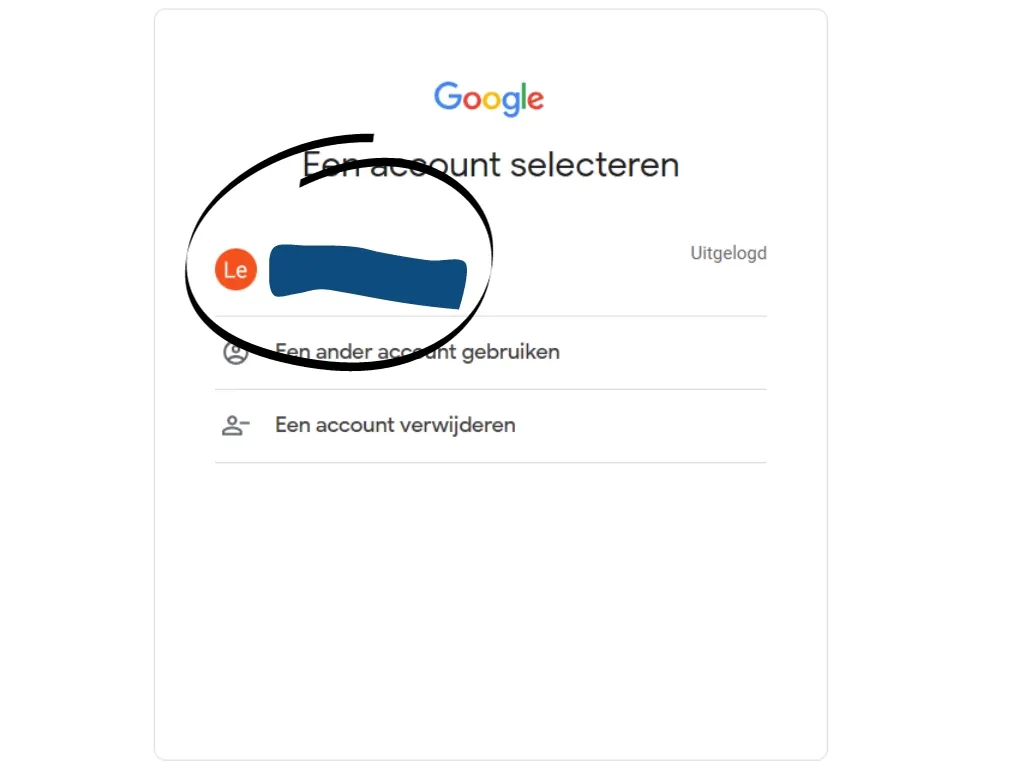
Step 2: Verify Your Domain Ownership
You’ll then reach the next page to verify your domain ownership. Here you have two options, domain and URL prefix.
Choose ‘Domain’ and enter your domain in the field provided.

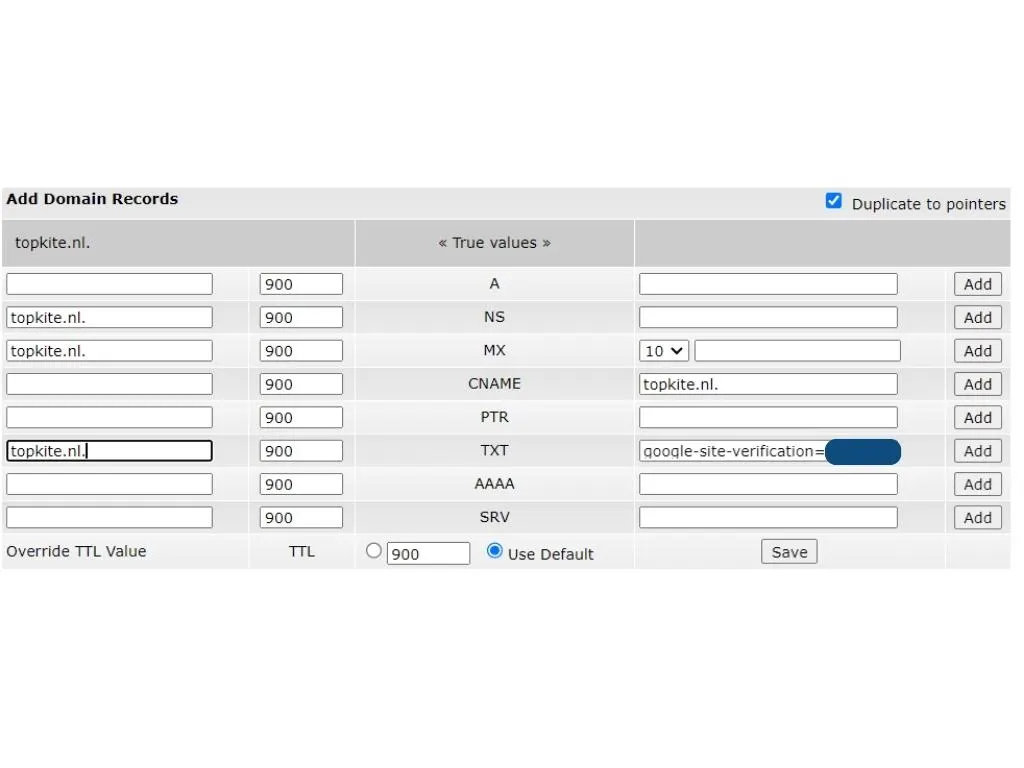
Now you need to verify your domain ownership via DNS records.

DNS records, what are those? I didn’t think I had to be a technical wizard!
Don’t worry, it’s not as difficult as it sounds.
Go to your hosting provider, log in and go to DNS management. You’ll then land on a page with a section similar to the one below. This differs a bit per hosting provider, but it all comes down to the same thing.
Under ‘TXT’, enter your verification code on one side and your domain on the other. Don’t forget to add a full stop at the end. Example: example.com(.) . Remove the brackets, of course ;).
Finally, don’t forget to save your changes!
You’ll now be greeted by a pop-up! This one speaks for itself, just click start and carry on!

You’ve now arrived at the Google Search Console dashboard! Here’s what it looks like!

On the left side, you’ll find a menu that lets you easily navigate through all the features. Be sure to take a look around and get familiar with everything!
In the middle of your screen, you’ll first see ‘Search Console Insights’. A tip from me: if you want to feel good about your website for a moment, take a look here ;).
Then you’ll see your performance over the past three months in a quick overview, followed underneath by a chart showing how many pages have been indexed.
If you scroll down a bit further, you’ll also get quick insight into your website’s functionality (page speed, mobile-friendliness, etc.) and below that you’ll quickly see your enhancements (breadcrumbs and information about your sitelinks search box).

Voilà! You’re now officially on board with Google Search Console.
Now it’s time to add your sitemap!
Step 3: Now It’s Time to Add the Sitemap!
One of the most important actions you can take in Google Search Console is adding a sitemap.
This helps Google understand your website better, and that means… Exactly! Ranking HIGHER!
But how exactly do you do that? Easy! Follow these steps…
Where Do I Find That Sitemap?
Before you can add anything to Google Search Console at all, you obviously need a sitemap. This is an XML file that shows the structure of your website.
Many content management systems, such as WordPress, generate a sitemap for you automatically. You’ll often find it by entering yourdomain.com/sitemap.xml in the address bar at the top.
Now you’re in your sitemap! It looks roughly like this…
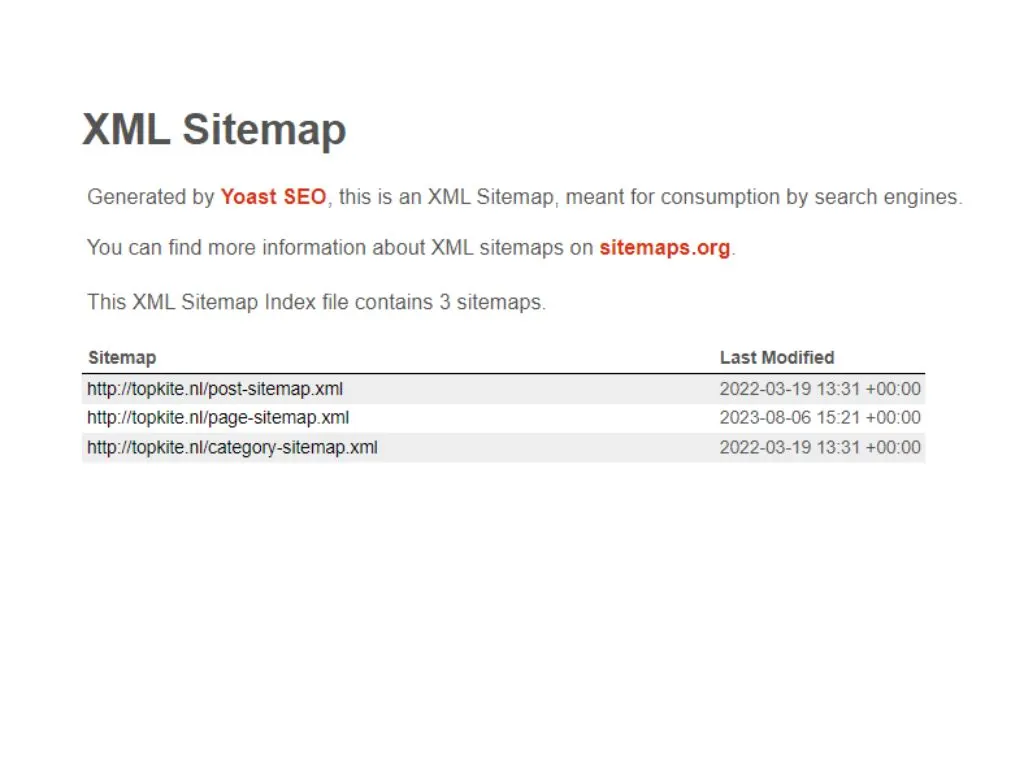
Found it? Copy this URL and follow the next step.
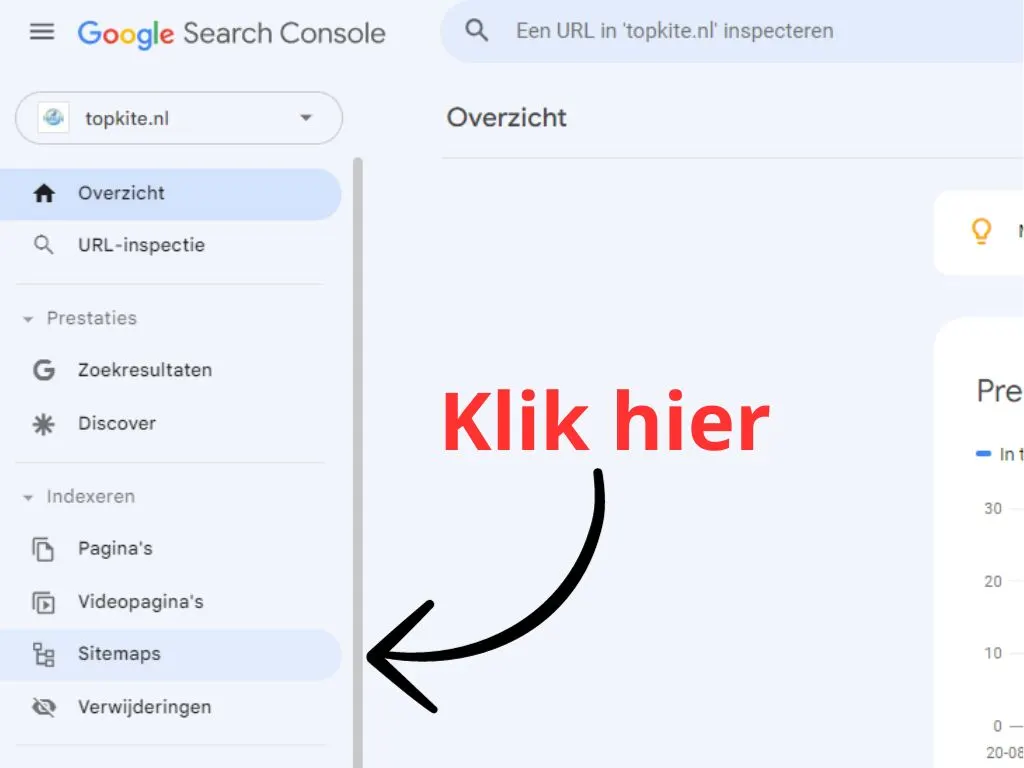
Go to ‘Sitemaps’ in the GSC Dashboard
On the left side of the screen, you’ll see a menu. Look under the heading ‘Indexing‘, then click on ‘Sitemaps‘.
Add Your Sitemap
You’ll land on a page where you need to enter a URL. Enter your sitemap’s URL here, which looks roughly like this: ‘yourdomain.com/sitemap.xml‘, though it could also end in ‘page-sitemap.xml‘ or ‘sitemap_index.xml‘. This can vary, but it all comes down to the same thing.
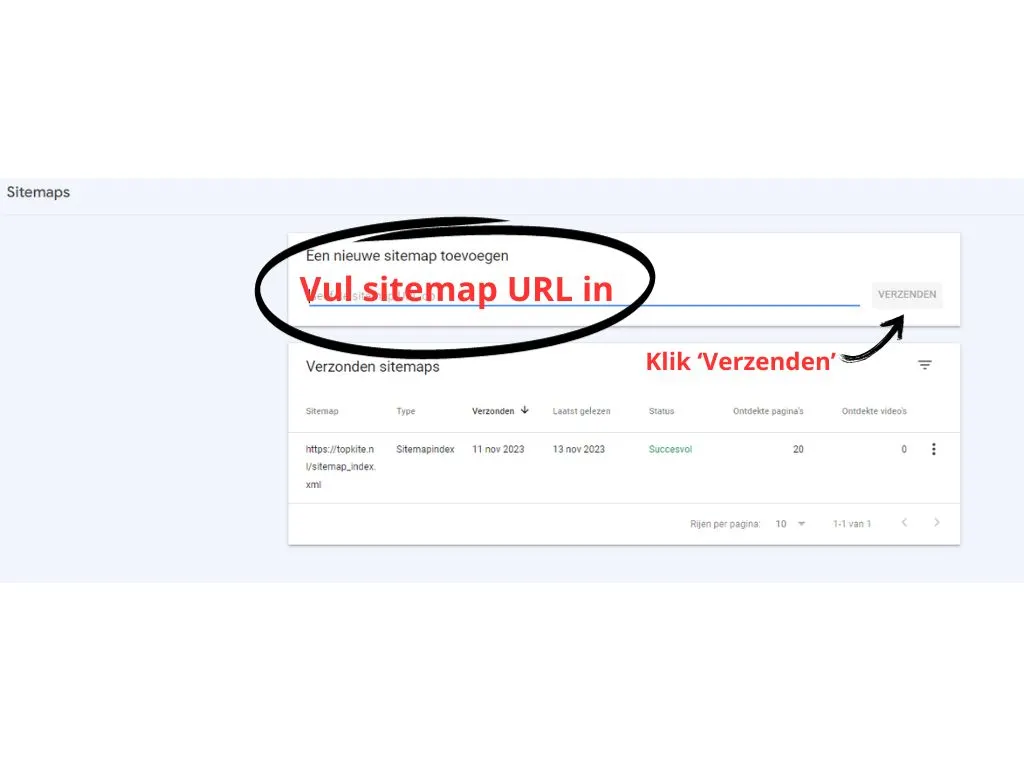
Then click ‘Submit’.
Tip! Want to see what content and pages your competitors have on their site? Take a look at their sitemap by searching ‘theirdomain.com/sitemap.xml’.
Wait for Processing
After you submit your sitemap, it can take a while before Google has processed it. You’ll see the status of your submitted sitemap in the overview. If any errors are found, Google Search Console will also give you information about what’s wrong, so you can fix it.
Congratulations! You’ve successfully added your sitemap to Google Search Console. This helps Google understand and index your website better, and gives you the best feedback possible.
Now it’s time to explore Google Search Console and see where you can find everything! We’ll go through this in detail in the next chapter!
Google Search Console Features and How to Use Them!
Google Search Console is the bridge between your website and Google’s search results. Without GSC, you’re missing out on insights that can make or break your site. With it, you spot problems before they cause any damage.
Every click, impression, and average position is recorded. With GSC, you see exactly how Google views your site. “Where do I find all this data” and “What do I do with all that data?” Good questions! That’s exactly what I’m about to explain below.
URL Inspection
The ‘URL Inspection’ tool in GSC is like an X-ray machine for every page on your site. It tells you how Google sees your page.
With ‘URL Inspection’, you can:
- Check whether Google even knows about your URL. If you’re not in the index, you won’t be found. Simple as that.
- Spot errors. Is a robots.txt file blocking your page? Is there a crawl error? You’ll find it here.
- Request indexing. Made some updates? Push it to Google for a fresh look.
- View the last crawled version. See what Google sees. Is your content up to date in the search results?
Think of it as a URL ‘health check’ straight from Google itself.
In the next section, I’ll walk you through a step-by-step process. From how to use the ‘URL Inspection’ tool, to how to apply the tips to improve your site.
First, enter the URL you want to inspect in the search bar at the top of GSC (see image).

You’ll now be taken to the next page! Here’s what you can do!

- Test Live URL: With the “TEST LIVE URL” button in the top right, you can run a live test on the URL you entered. This checks the current state of the URL in real time. Here’s what you can view with it!

- URL Is Indexed by Google: This confirms that the URL has been indexed by Google. This means the URL can appear in Google’s search results.
- View Indexed Page: The “VIEW INDEXED PAGE” option shows you the page as Google crawled and indexed it.
- Page Indexing: Under this section, you can see whether the page has been indexed. There’s a dropdown menu where more information may be available about the page’s indexing status.
- Request Indexing (re-indexing or new pages): With the “REQUEST INDEXING” button, you can ask Google to re-index the page or index a new one. This is handy if you’ve recently made changes to a page and want Google to notice them, or if you want a new page indexed.
You’ll also see in the image that there are more features you can discover in Google Search Console, such as:
- Optimisations and functionality: Here you can see optimisation suggestions and functionality for your website that Google has identified.
- Mobile usability: Gives information about how usable the page is on mobile devices.
- Breadcrumbs: Shows whether a valid path (breadcrumb navigation) has been detected for the page.
- Sitelinks search box: This lets you check whether Google has detected a valid sitelinks search box.
Now you know what you can do with the URL Inspection tool, where to find it, and how to use it!
Performance in Search Results
Nice, all those coloured lines, but what does it mean! And what can I do with it? Honest answer: a lot!

Here’s a crash course summing up the most important features of this page, ready to sharpen your strategy with decisions based on real data.
- The blue line you see jumping around, that’s your ‘Clicks‘ – the foundation of your web traffic. Every little jump upward is a potential customer, a curious visitor, or a loyal fan who’s landed on your site.
- Then there’s the purple line – your ‘Impressions‘, the number of times your page has shone in Google’s search results. The higher the peaks, the greater your visibility.
- Now for the green line, your ‘click-through rate’ (CTR). When this rises, it means people aren’t just seeing your site in the search results, they’re also clicking on it. They’re interested!
- And let’s not forget the orange line – your ‘average position‘ in search results across all your pages combined. This is your SEO scoreboard. A well-known rule of thumb! The closer to 1, the better!
But it offers even more options! At the bottom, you get top results plus filter names, and at the top, next to the ‘+’, you can create specific filters. For example, if you want to see how a specific page is ranking.

With this, you can do the following:
- Queries: Discover which keywords lead users to your site and how often you appear for them. In other words, your best-performing keywords!
- (Top) Pages: Identify which specific pages of your site are most visible in the search results. Your top pages!
- Countries: See which countries your visitors come from, which can be important for targeting your international SEO strategy.
- Devices: Understand whether your visitors mainly arrive via desktop, tablet or mobile devices, so you can optimise your site accordingly.
- Search appearance: Analyse how your site performs across different search types, such as web, images or video. In other words, where your traffic comes from!
- Dates: Filter your data by specific time periods to spot trends or seasonal changes in your site traffic.
Performance on Discover
On the “Performance on Discover” page in Google Search Console, you’ll find data on how your content performs in Google’s Discover feature, such as the number of times your content was shown (impressions), the number of clicks and the click-through rate (CTR). This is pretty much the same as the Performance in Search Results page.

This page helps you understand which parts of your content resonate with users in Discover, which can range from news articles to evergreen content.
In short, this chart and its filters in Google Search Console aren’t just a set of lines and numbers. By analysing and using this data cleverly, you can improve your strategy, grow your visibility, and turn your website into a genuine contender within your niche.
We’re of course happy to help you with that!
Page Indexing
Imagine Google is a huge library, and your website is a book. The Page Indexing report, also known as ‘Index Coverage’, shows whether your ‘book’ can actually be found on the shelves of this gigantic library.
But why does this matter? Put simply, if your pages aren’t indexed, they’re invisible to Google. And whatever is invisible to Google is invisible to your potential customers.
It tells you which pages of your website have been indexed by Google and, more importantly, which haven’t.
It gives you a single overview of how many pages are indexed, as you can see in the image!

Below that, you’ll get a list of ‘why’ your pages aren’t being indexed and how many pages are affected by each issue.
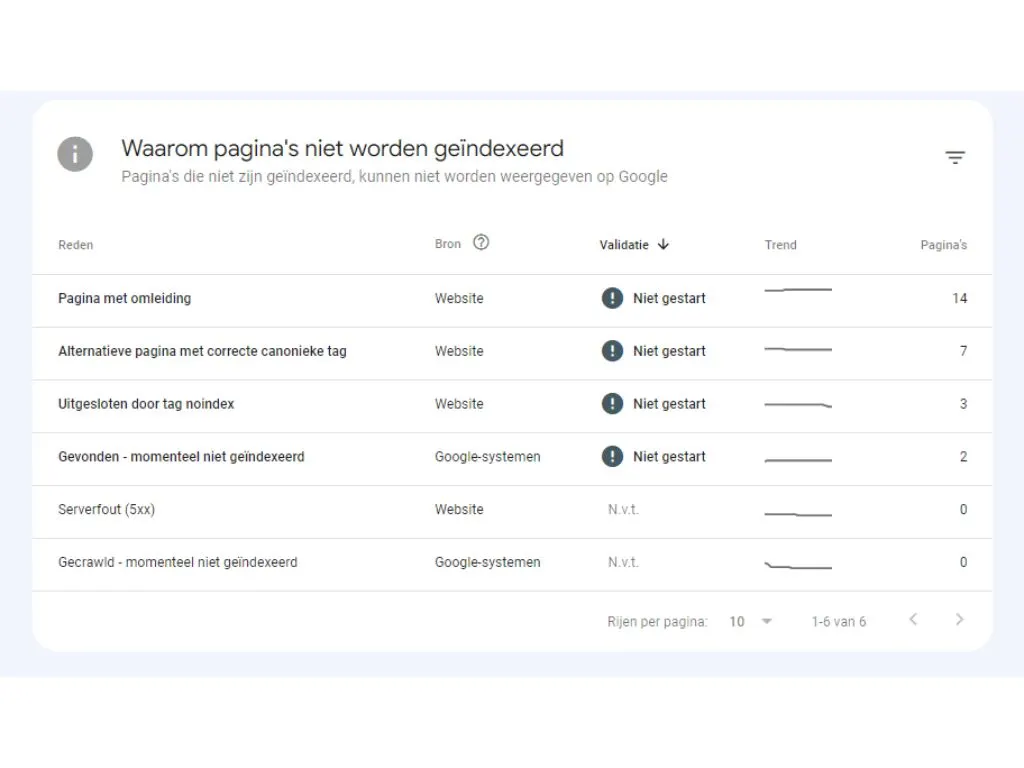
Here’s a list of common issues you can fix using the ‘Page Indexing’ section in Google Search Console:
- 404 Errors (Not Found): Identify and fix pages that no longer exist.
- Server Errors: Fix issues that prevent access to certain pages.
- Blocked by robots.txt: Adjust your robots.txt file to make important pages accessible to Google.
- Noindex Tag Errors: Find pages that have been wrongly excluded from indexing.
- Redirect Errors: Fix misconfigured or broken redirects.
- Duplicate Content: Tackle issues with duplicate content.
- Mobile Usability Issues: Improve the user experience on mobile devices.
- Security Issues: Identify and fix security risks on your website.
- Structured Data Errors: Fix issues that affect how rich snippets appear in search results.
When you click on one of these issues and scroll down, you’ll see a list of URLs affected by it, which need work!

Now you can quickly and effectively fix issues and get your ‘pages’ from your ‘book’ into Google’s ‘library’, and share your story with your customers!
But what if I use examples in the form of videos? Are those always picked up properly too?
No, unfortunately not!
But don’t worry, we’ll explain this in the next section!
Video Page Indexing
We all know that video content is becoming more important in the online world. But how do you know if your videos are actually being seen by Google? That’s where ‘Video Page Indexing’ in Google Search Console comes in.
It gives you insight into which videos have been indexed by Google, or any issues they’re running into, and how to fix them.
As you can see below, you get a single overview showing how many videos ARE indexed, but also the videos that are NOT indexed!

Below that, just like with ‘page indexing’, you’ll find your ‘why‘.

Just like with ‘page indexing’, you can click on the issues and get an overview of all the videos affected by that issue, and where to find them.
It also links to an information page where you may find possible solutions. Check out this page via this link!

Here’s a quick rundown of the most common issues you’ll come across:
- Video Not Indexed: Google hasn’t indexed the video on the page.
- Fetching Issues: Difficulties Google has when fetching the video.
- Metadata or Information Issues: Missing or incorrect metadata for the video.
- Multiple Videos on One Page: Google typically only indexes one video per page.
- Sitemap Issues: Inconsistencies or problems with videos listed in sitemaps.
It’s important to fix these issues for better indexing and visibility of your video content in Google’s search results.
Removals
Ah sh*t! The wrong content! I don’t want this in Google’s index!
That’s exactly what Google Search Console’s Removals tool is for!

What you can do and view with this tool:
- Temporarily block URLs on your site, this lets you temporarily remove URLs from Google’s search results for about six months. It’s a quick fix for removing sensitive or unwanted content.
- Permanent Removal, this lets you permanently remove outdated or irrelevant content. This requires removing or blocking the page in your website’s robots.txt, after which the ‘Removals’ tool can be used to remove the URL from the search results more quickly.
- Removing Outdated Content, this is meant for removing content that has already been removed from your site but is still shown in the search results. This helps keep the displayed content up to date.
- Cache Removal, with this feature you can remove the cached version of a web page. This is especially useful if the page’s content has been updated but the search results still show the old version. Click ‘New request’ and then go to ‘Clear cached URL’!

- View the history of removal requests (outdated content).

- See which URLs on your site have been flagged as ‘adult content’.

In other words, the ‘Removals’ tool in Google Search Console is incredibly useful if you want to keep your content up to date! It keeps your website clean, relevant and free of content that’s outdated or unsuitable!
Page Experience
Google rewards websites with good page experience, but what do they actually mean by that?
It comes down to 2 factors, Core Web Vitals (site health) and HTTPS (security).
Under Page Experience, you’ll find a quick overview where you can see at a glance whether there are any issues in this area.

Running into a problem? Then the following sections are well worth reading! Here you’ll find the tools GSC has to analyse these issues!
Core Web Vitals
Imagine your website is a shop, and the shop front looks amazing! (your Google ad). But once customers step inside, it’s messy, slow to navigate, or things keep moving around, how long do you think they’ll stay? Not long, right?
‘Core Web Vitals’ is what Google uses to assess a website’s user experience. This report focuses on three key aspects:
- Largest Contentful Paint (LCP): Measures the loading speed of the largest content element, such as an image or text block, which matters for seeing how quickly visitors experience the main content.
- First Input Delay (FID): Covers the time between a user action (such as a click) and the site’s response, which affects interactivity.
- Cumulative Layout Shift (CLS): Measures unexpected layout shifts during loading, which can lead to a frustrating user experience.
Together, these three factors give a clear picture of how fast and smoothly your website loads and responds for visitors. You can probably guess that this is MEGA important!
The ‘Core Web Vitals’ tool in Google Search Console gives you insight into this. As you can see below, you first get an overview for mobile and desktop, where you can open a report in the top right for deeper insights.

Here you can see how many pages are affected by issues, and if you scroll down, you’ll again see the reasons why they’re running into these problems.

When you click on a given issue, you’ll see all the URLs affected by it.

If you then click on one of these URLs, you’ll get a detailed overview on the right side of your screen of all the URLs within that group! As you can see, it’s a maze of endless data and insights!

Now you’re ready to get your Core Web Vitals in top shape and give visitors a flawless site experience!
You now know the issues, but is your mobile usability already optimal? We’ll get into that in the next section!
Usability on Mobile Devices (Mobile-Friendliness)
Put simply, the ‘Mobile Usability‘ report analyses how well your website performs on mobile devices.
Unfortunately, this report has been retired since 1 December 2023! Read more here! One solution they offer instead is the open-source Lighthouse, an automated tool that improves web pages.
But do you still want to dive into a bit of history? Read on!
In an era where more people browse on their phones than on desktops, this matters more than EVER!
The report checks a range of factors, such as text readability, how accessible links are, and whether the content fits within a mobile device’s screen.
It gives a quick overview of how many pages are, or aren’t, usable for mobile users
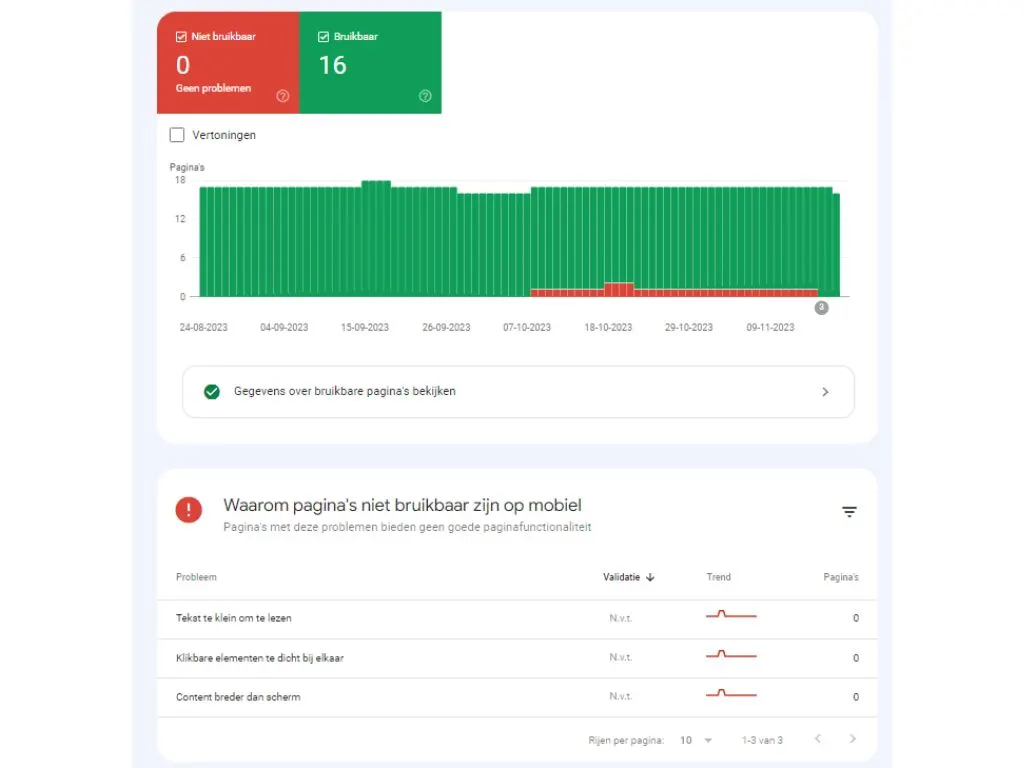
Scroll down again and you’ll see which issues come up, such as: text too small to read, clickable elements too close together, content wider than screen.
Click on one of the issues and you’ll see which URLs need optimising. Fixed it? Click the ‘Validate fix’ button in the top right.

And that’s that!
Now there’s one more tool that gives you insights into your website’s functionality in Google’s eyes, that’s HTTPS, in other words your website’s security.
Google places a lot of value on this, so it’s definitely worth going over!
HTTPS
HTTPS is the security layer that guarantees the safety and privacy of users, something Google values very highly.
Google itself gives priority to HTTPS websites in its search results, a safer site = more trust from Google = a better chance of ranking higher.
Just like all the tools above, you first get an overview of how many pages do and don’t have issues.

Scroll down again and you’ll see what kind of issues occur. Unfortunately I don’t have a concrete screenshot, but it should be here!
Click on it again and you’ll see which URLs need optimising. Done? Click validate fix!
Now you’re all set to fine-tune your website’s functionality down to the last detail! It has a big impact on your ranking in Google’s search results! So check this regularly to stay on top of things and fix any possible issues quickly.
Enhancements
Google Search Console offers a set of reports under ‘Enhancements‘, including ‘Breadcrumbs‘, ‘FAQs‘ and ‘Sitelinks Search Box‘. These reports can help you improve these aspects of your website, and, of course, what we ultimately want, ranking better!
Breadcrumbs
Let’s start with ‘Breadcrumbs’. No, not the ones from Hansel and Gretel, but the navigation aids on your website.
Breadcrumbs show the path from the homepage to the current page, such as ‘Home > Blog > SEO Tips’. This isn’t just handy for users finding their way around, it also helps Google understand your site’s structure. The latter matters a great deal for SEO!
This report helps you identify and fix any issues with your breadcrumb markup, and it looks the same as all the other enhancement reports.
First you get a screen with the overview, with all valid and invalid breadcrumbs, and below that you’ll find the types of issues.

Click on an issue and you’ll find the URLs affected by it, and once you’ve fixed it, don’t forget to validate it using the ‘Validate fix’ button in the top right.
And you’re up and running again!
But do you want a shot at even more visibility in the search results? Read on!
FAQs
The ‘FAQs’ section of the report is about FAQ schema markup on your pages.
FAQ schema markup is a type of structured data in HTML code, used to mark up frequently asked questions (FAQs) on a website, so that search engines like Google can recognise them and display them in the search results, which can lead to better visibility and click-through rate
Wondering how FAQ schema markup shows up in the search results? Check out the following image!

Identifying and fixing issues works the same way as with ‘breadcrumbs’ and all the other reports.
By using FAQ schema, you can show direct answers to frequently asked questions in the search results. This can improve your visibility and click-through rate (CTR).
Unfortunately, Google has been showing these less often in the search results, as discussed in this article!
Sitelinks Search Box
Last but not least, the ‘Sitelinks Search Box’. This is a search bar that can appear directly in the search results under your website listing. It makes it super easy for users to search your site directly from Google.

This improves navigation, so users can quickly find specific content on your site.
It can also make your listing in the search results BIGGER and more eye-catching, boosting your visibility and CTR in the search results!
Identifying and fixing issues works the same way as with ‘breadcrumbs’ and all the other reports.
And once again, don’t forget to validate the fix at the end!
Links (Internal and External Links)
The “Links” report in Google Search Console gives you insight into both the backlinks pointing to your site and the internal links between the pages within your website.

A backlink is a link on a page of another site that points to a page on your site. These matter a great deal for showing your website’s authority to search engines.
An internal link is a hyperlink that points from one page within a website to another page within that same website. This matters for spreading that authority (also known as ‘link juice’) across all the pages of your website.
The report contains the following information:
- Top Linked Pages: Shows the most linked-to pages on your site, so you can see which of your pages receive the most backlinks from other sites.
- Top Linking Sites: Shows which sites contain the most backlinks to your site. The report shows the root domain of the sites with the most links to your site, sorted by number of links.
- Top Linking Text: Reveals the most common anchor text used in links to your site. Only links from outside your own property are included. Duplicate links are combined, where a duplicate is an exact match regardless of upper or lower case.
- Top Linking Sites for a Specific Page: Shows the number of backlinks you receive from a particular site for a specific page. This is only visible for pages that appear in the ‘Top Linked Pages’ table. I’ll show you how to get there in a moment!
- Backlinks from a Specific Site to a Specific Page: Shows which specific backlinks you have from a particular site to a specific page on your site. I’ll explain how to find this now!
Each of these sections has a ‘More’ button, click on it and you’ll get more and deeper insights!

As you can see in the following image, you can see which sites link to you the most, and if you click on one of these sites, insights into which pages are all being linked!

You can do this for all sections, and the information speaks for itself, you get insight into your backlink profile and your internal link structure, and you can use this to optimise them for a better SEO score!
Settings
Last but not least in the sidebar, we arrive at Settings! Here you can manage your Google Search Console, from giving people access to deleting your property. To keep it short, I’ve listed the most important things below:
- Ownership Verification: Shows the method used to verify your website with Google Search Console.
- Users and Permissions: Here you can manage users, set or change their access levels.
- Associations: Here you can link other Google services, such as Google Analytics, to your Search Console account.
- Change of Address: A tool for reporting that your website has moved to a new domain.
- Bulk Data Export: This lets you export large datasets to BigQuery or as a CSV file, for super detailed analysis and reporting.
- Robots.txt: Here you can check whether your robots.txt has been fetched correctly by Google.
- Crawl Stats: Provides information about how and when Googlebot crawls your site.
- Remove Property: Hopefully you’ll never need this, but here you can delete your Google Search Console property.
That looks roughly like this!

So if you ever need to add someone, like (us) your SEO specialist, or remove someone, that’s where ‘Settings’ comes in!
Conclusion
Well, phew, we really went deep! But I can now officially crown you a Digital Bean Google Search Console Master!
Thanks to this guide, you’ve seen how easy it is to set up your Search Console, and you’ve dived deep into the world of SEO reports and tools. You now have the skills to boost your website’s visibility and performance, and that’s pretty cool, right?
I sincerely hope I’ve been able to help you set up Google Search Console. Missing something, or do you still have questions? Feel free to leave a comment and I’ll try to help as quickly as possible!
SEO and Google Search Console are constantly changing. To stay fully up to date, follow us on social media and sign up for our newsletter.
Ready to get everything out of your website! At Digital Bean, we’re ready to help you get your website to the top of the search results. Sounds good? Click below and let’s get started together!